
Appearance
Catalog → Order → Payment
This section walks you through the catalog purchasing flow: browsing products, placing an order, and completing payment — including the optional deposit + balance payment plan.
Flow Overview
Step-by-Step
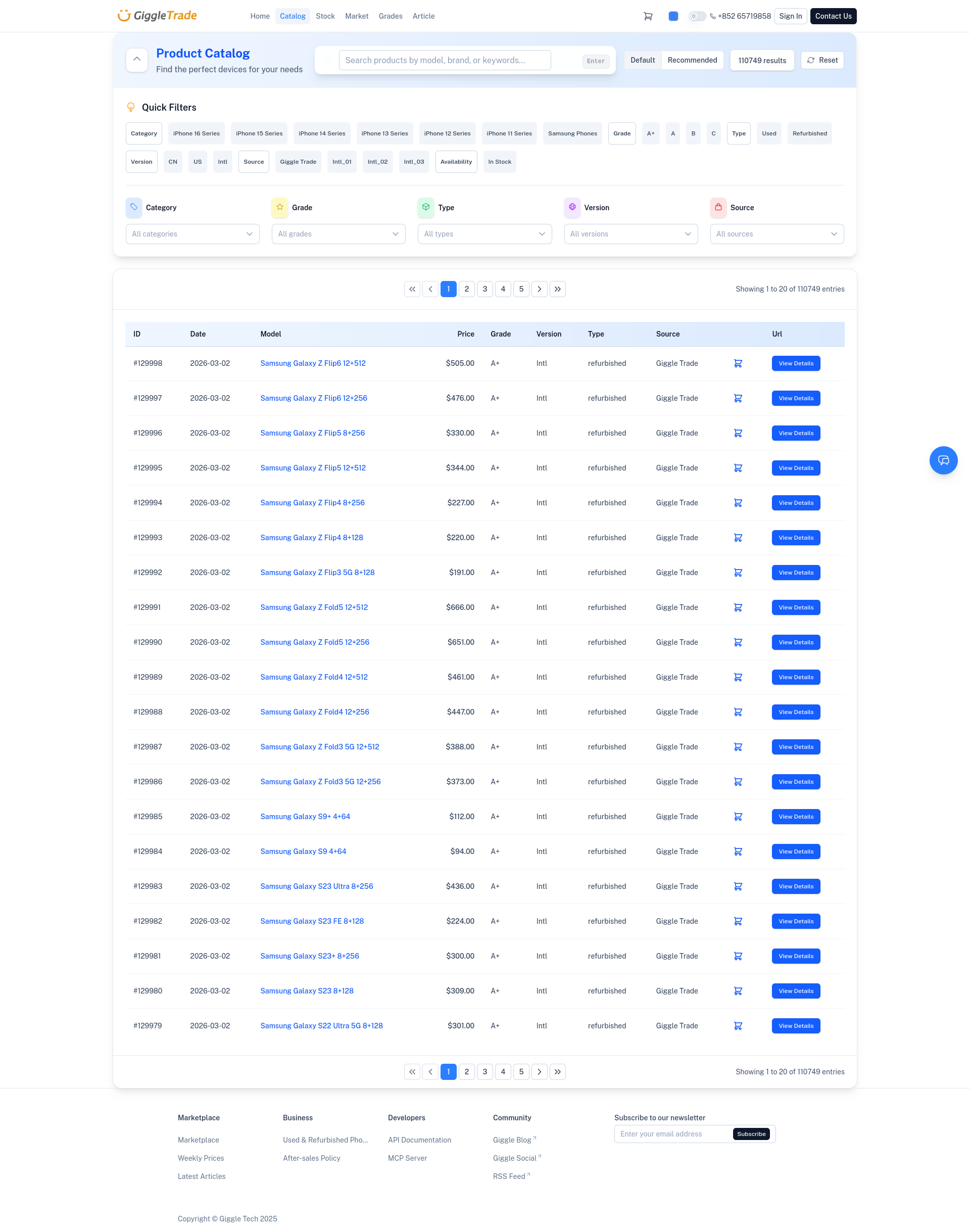
1. Browse the catalog
Open the Catalog to explore products by model, brand, and category. Each listing shows the weekly reference price, available grades, and key specifications.
- URL:
/market/catalog - Use filters (brand, model, storage, grade) to narrow results.
- Click a product card to view its detail page.
Weekly prices
Catalog prices are updated weekly and serve as reference prices. The final price is confirmed during order review by both parties.
2. Product detail & add to cart
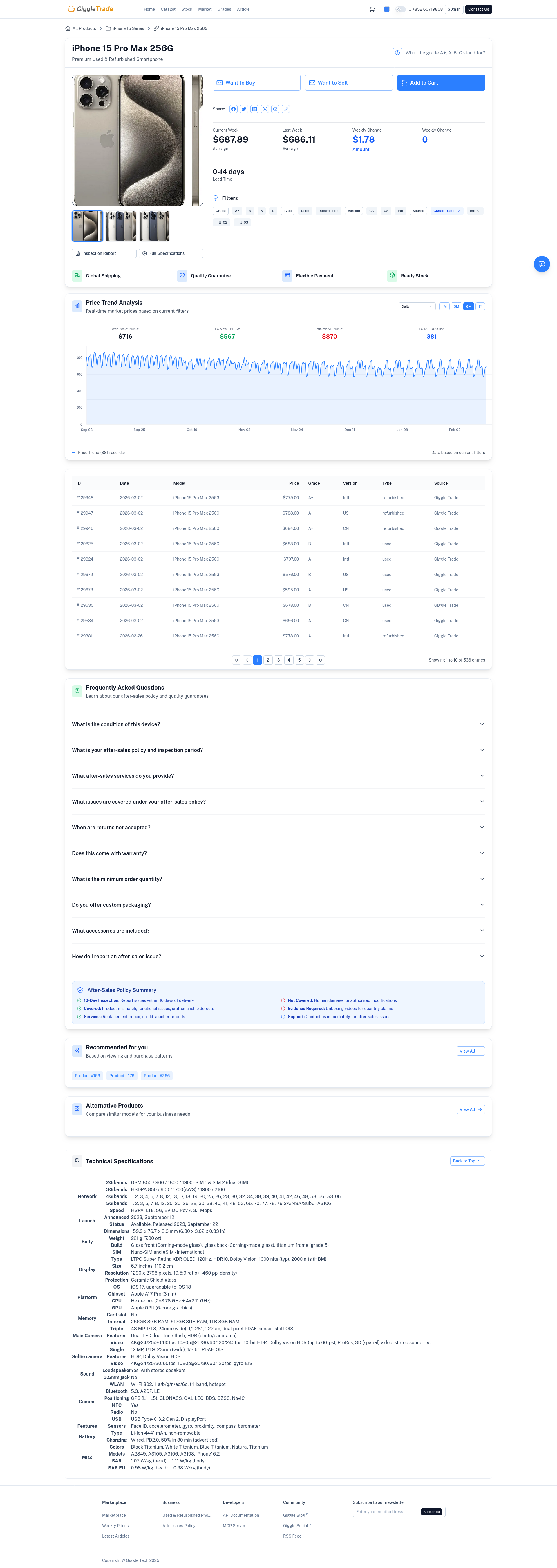
On the product detail page you will see:
- Product name, images, and description
- Latest weekly price (with optional price trend)
- Available grades (A, B, C), storage options, and versions
- Add to cart button with quantity selector
Select your desired specifications and click Add to cart. You can continue browsing or go directly to your cart.
- URL:
/market/catalog/[product-slug]
3. Review your cart
- URL:
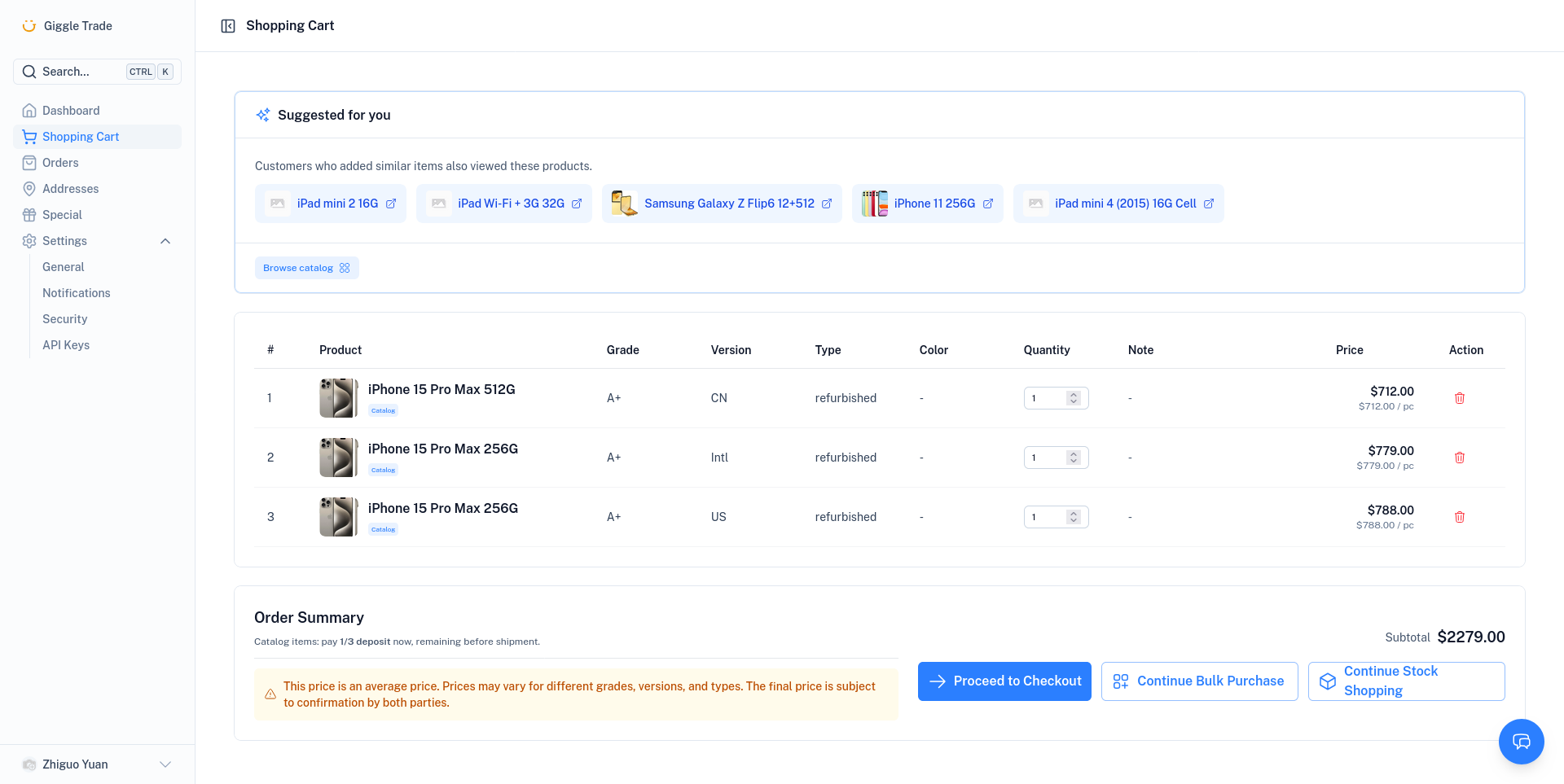
/my/cart(login required) - Review all catalog items in your cart.
- Adjust quantities, add notes, or remove items.
- Check the subtotal and order summary.
- Click Proceed to Checkout.
WARNING
The displayed price is a reference average. Final prices may vary by grade, version, and storage — subject to confirmation by both parties.
4. Checkout
- URL:
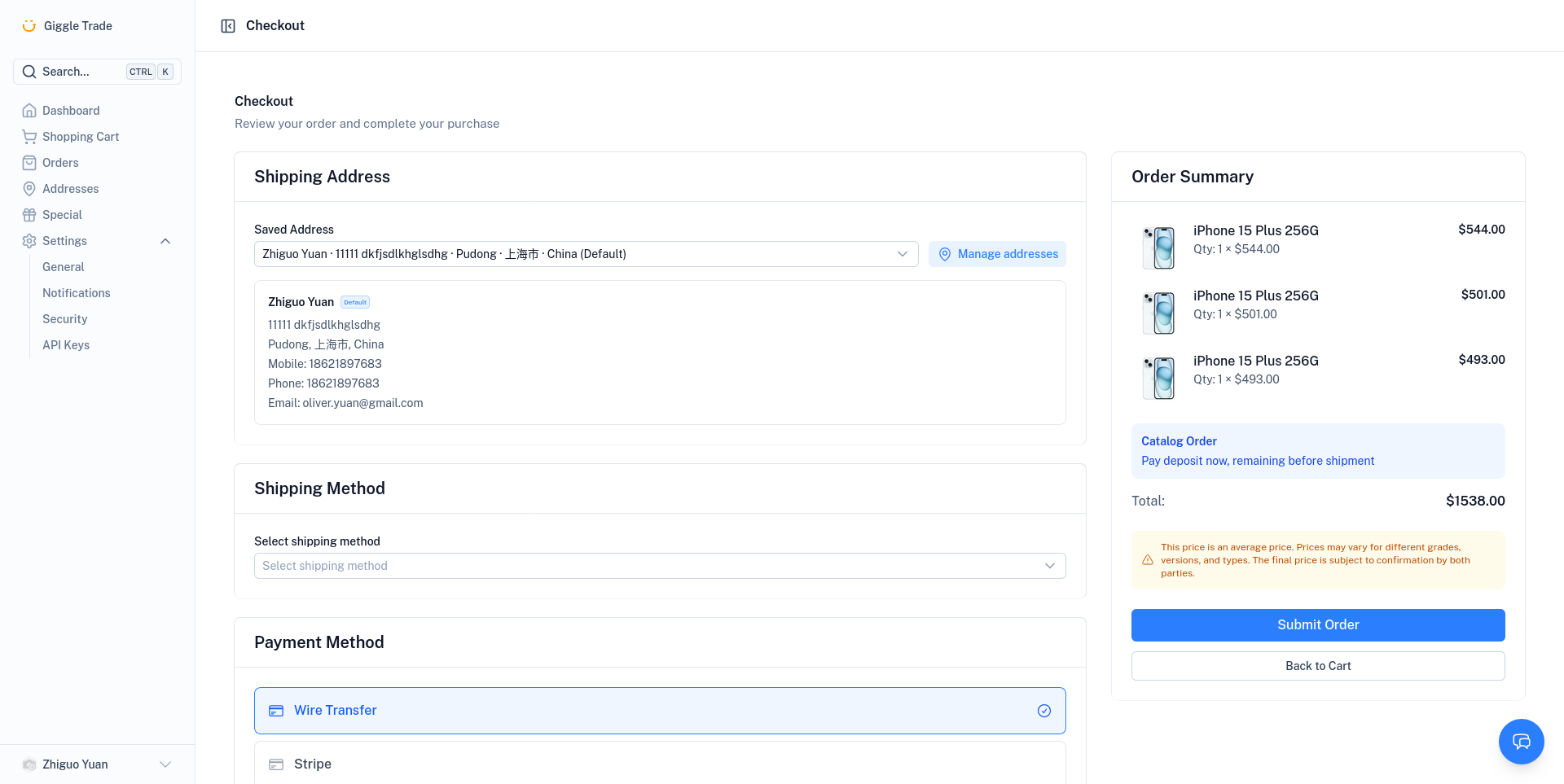
/my/checkout - Select or add a shipping address.
- Choose a shipping method (if multiple options are available).
- Review the order summary.
- Click Place Order to submit.
After placing the order, you will be redirected to the Order Submitted confirmation page.
5. Order submitted
After placing your order, you land on the Order Submitted page:
- Your order is now pending platform review.
- You can choose to Pay now or pay later from the order detail page.
- The order number and status are displayed.
What happens next?
Our team will review and confirm your order. Once confirmed, you will receive a notification and can proceed with payment.
6. Payment options
Catalog orders support two payment plans (if deposit is enabled by the platform):
| Plan | How it works |
|---|---|
| Deposit + Balance | Pay a deposit (e.g. 1/3) now. Pay the remaining balance before shipment. |
| Full payment | Pay the full amount in one transaction. |
Payment URLs:
- Deposit:
/my/orders/[id]/payment?type=deposit - Balance:
/my/orders/[id]/payment?type=balance - Full:
/my/orders/[id]/payment?type=full
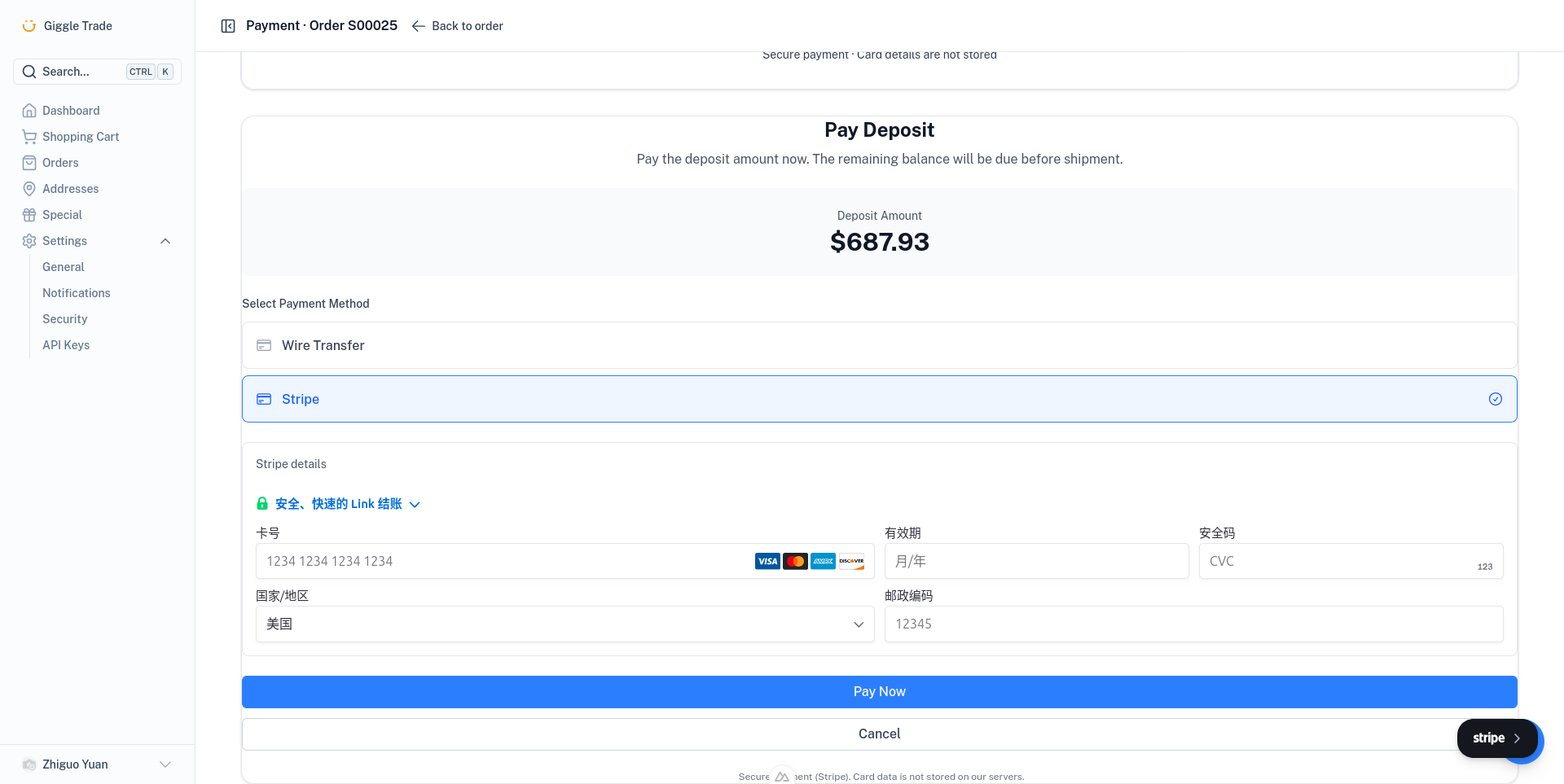
7. Complete payment
On the payment page:
- Review the amount due (deposit, balance, or full).
- Enter your card details (powered by Stripe — secure, PCI-compliant).
- Click Pay to complete the transaction.
- On success, you are redirected to the Payment Successful page.
8. Order detail & pay balance
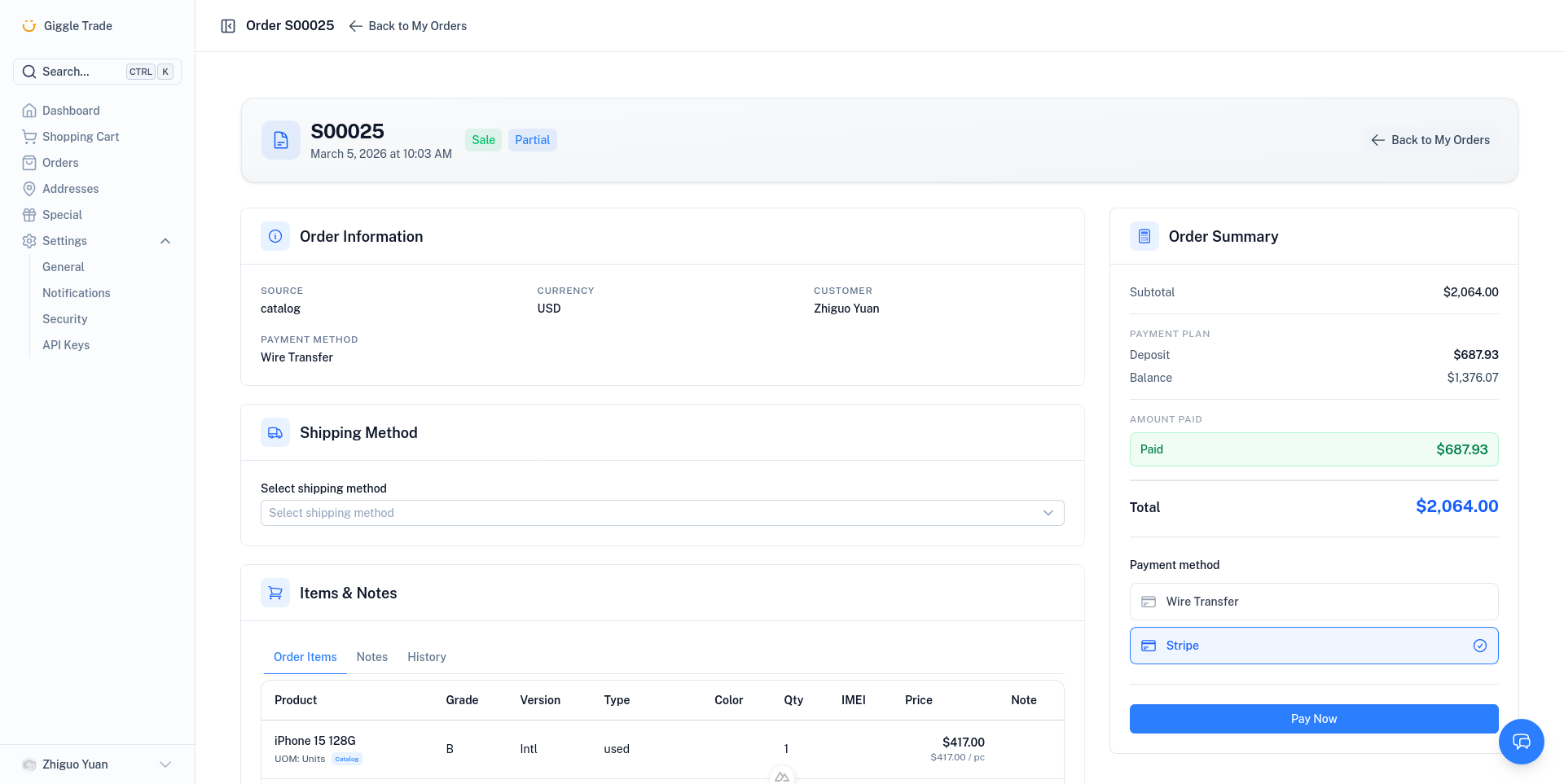
After payment, you can view your order at any time from My Orders:
- Order status — pending, confirmed, paid, shipped, complete
- Amount paid and balance due (for deposit orders)
- Pay balance button when the remaining amount is due
Summary
| Step | Action | Page |
|---|---|---|
| 1 | Browse catalog | /market/catalog |
| 2 | View product & add to cart | /market/catalog/[slug] |
| 3 | Review cart | /my/cart |
| 4 | Checkout & place order | /my/checkout |
| 5 | Order submitted (pending review) | /my/orders/[id]/order-submitted |
| 6 | Choose payment plan | Order detail page |
| 7 | Complete payment | /my/orders/[id]/payment |
| 8 | Track order & pay balance | /my/orders/[id] |
TIP
All catalog flows follow the same path: browse → cart → checkout → order → payment. The only difference is whether you pay deposit + balance or full in one go.