
Appearance
Stock → Order → Payment
This section walks you through the stock purchasing flow: browsing in-stock devices, placing an order, and completing full payment. Stock orders require full payment — there is no deposit/balance split.
Flow Overview
Step-by-Step
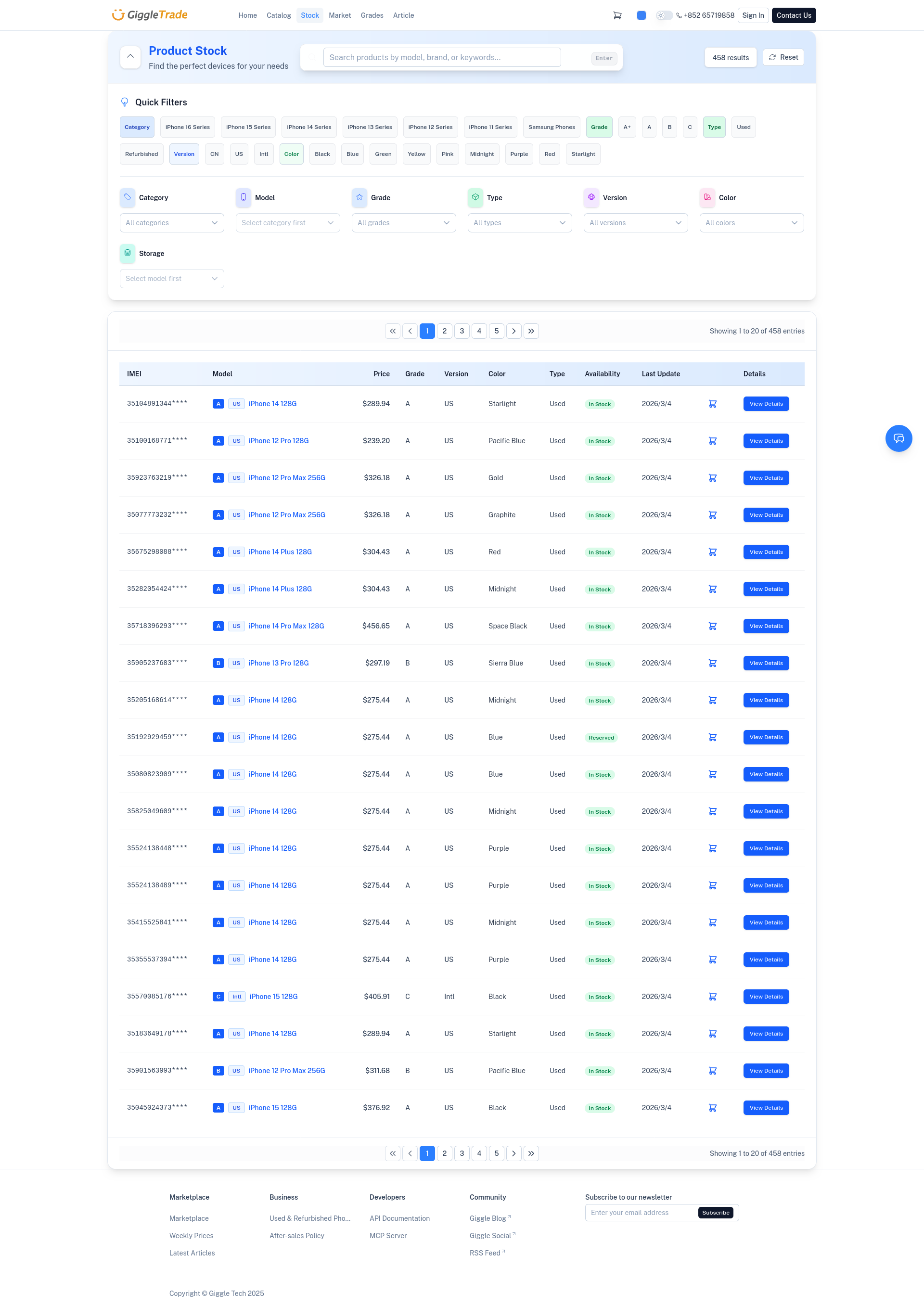
1. Browse stock
Open Stock to see in-stock devices with real-time availability. Each listing shows the model, grade, storage, version, condition, and price.
- URL:
/market/stock - Use filters (model, grade, storage, condition) to narrow results.
- Click a device to view its detail page.
Stock vs. Catalog
Stock items are individual devices with specific IMEI numbers and conditions. Inventory is real-time — once reserved, the device is held for you for 24 hours.
2. Device detail & add to cart
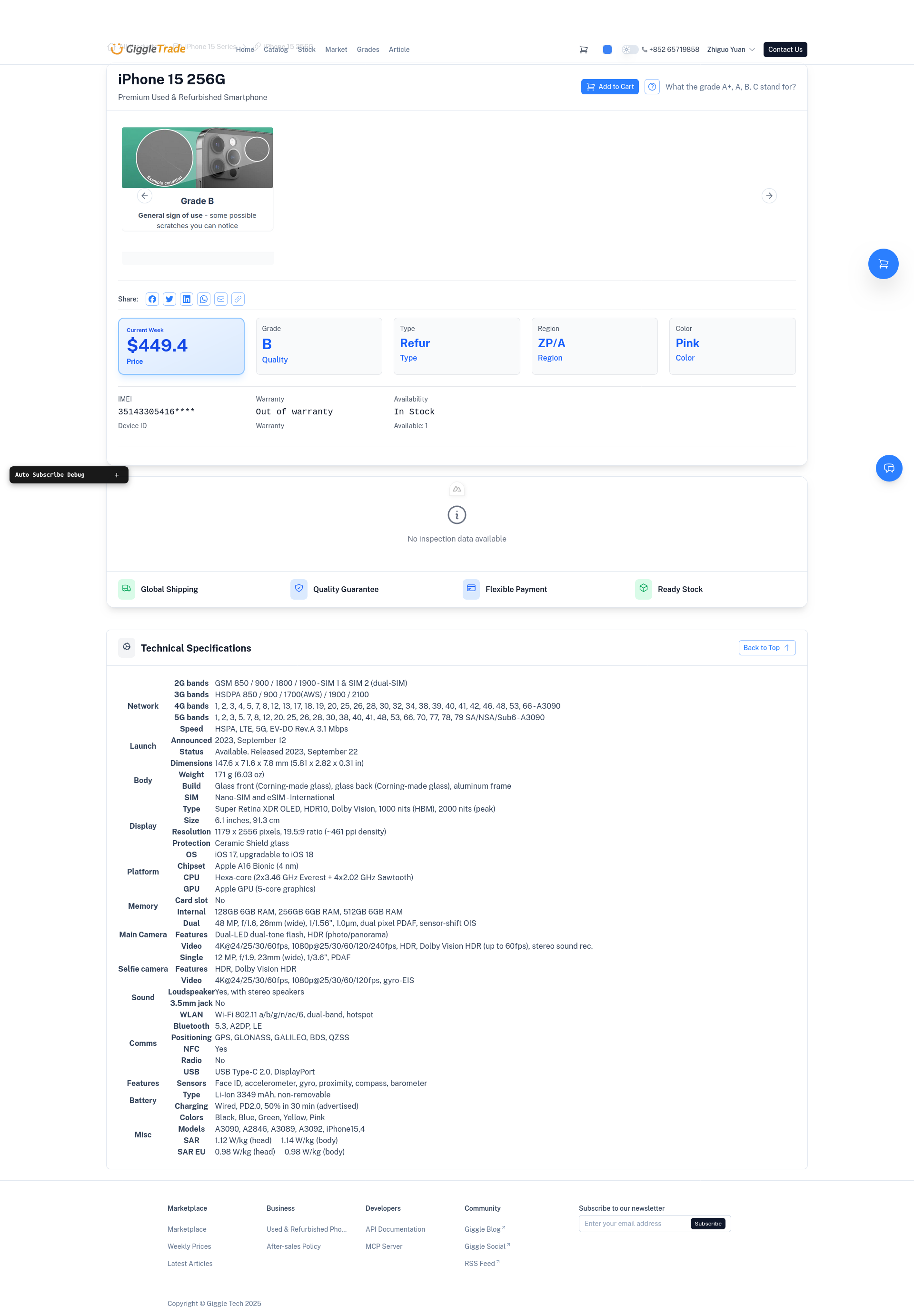
On the device detail page you will see:
- Device model, storage, grade, version, and condition
- IMEI number (masked for privacy until order)
- Price per unit
- Add to cart button
Click Add to cart to add the device. Stock items have a fixed quantity of 1 per device.
- URL:
/market/stock/[device-slug]
3. Review your cart
- URL:
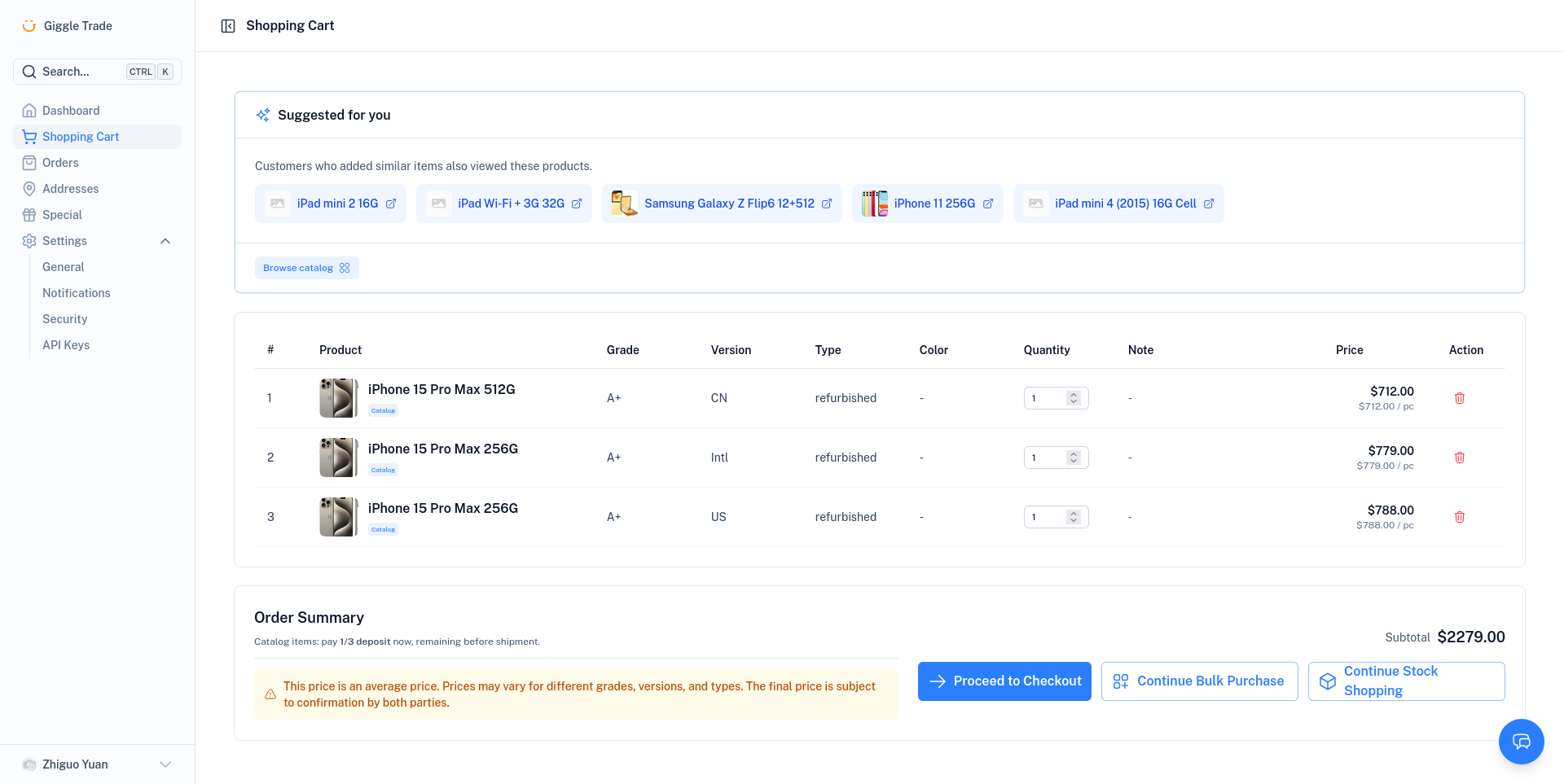
/my/cart(login required) - Review all stock items in your cart.
- Each stock item shows the device name, grade, version, IMEI (masked), and price.
- Remove unwanted items if needed.
- Click Proceed to Checkout.
Inventory reservation
Stock items are reserved when you submit the checkout. You have 24 hours to complete payment — after that, the reservation expires and the device becomes available again.
4. Checkout
- URL:
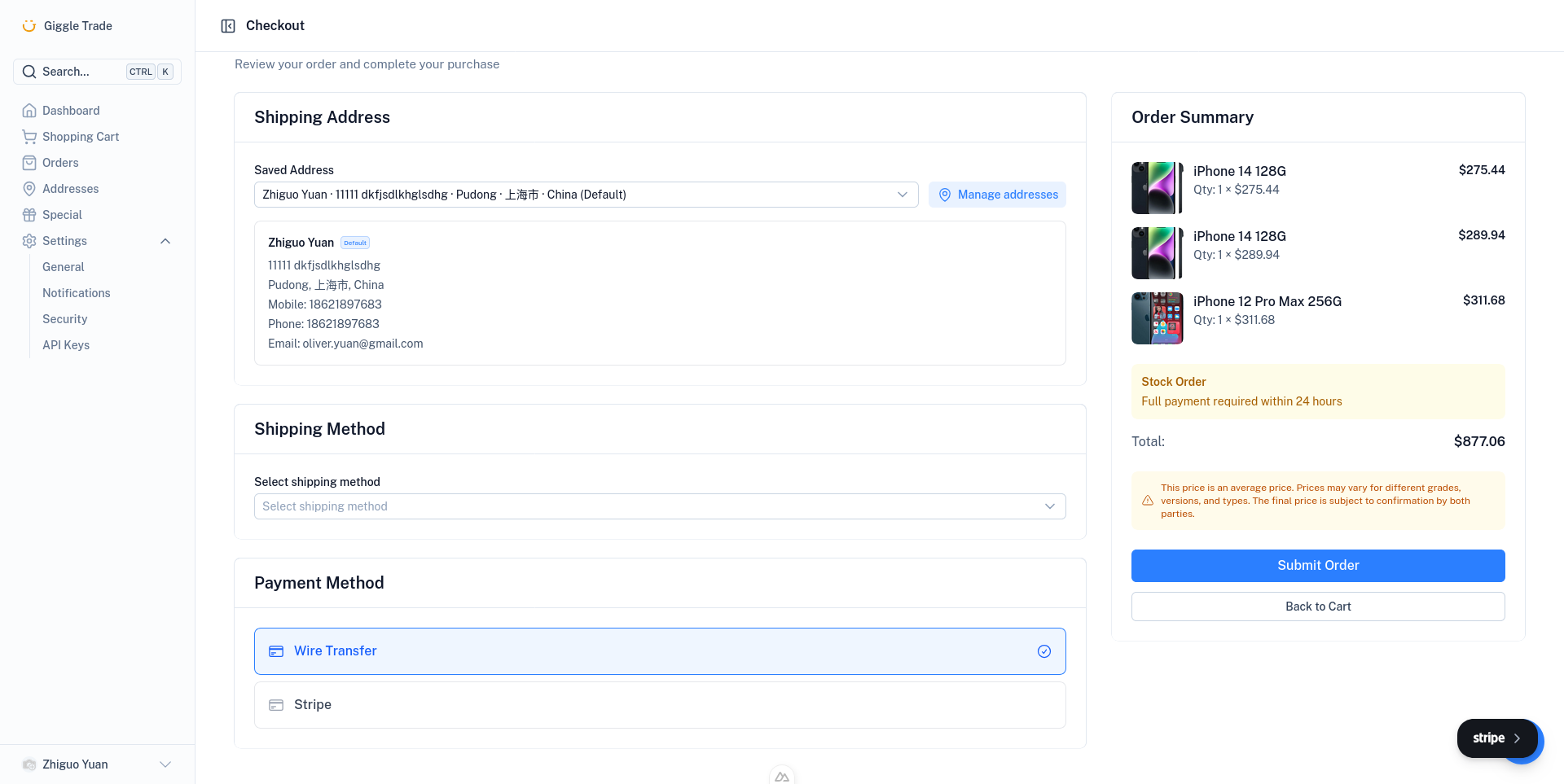
/my/checkout - Select or add a shipping address.
- Choose a shipping method (if multiple options are available).
- Review the order summary (items, quantities, total).
- Click Place Order to submit.
After placing the order, you will be redirected to the Order Submitted page.
5. Order submitted
After placing your order:
- Your order is pending platform review.
- You can click Pay now to proceed directly to payment.
- The order number and status are displayed.
24-hour payment window
For stock orders, inventory is reserved for 24 hours after checkout. Complete your payment within this window to secure the devices.
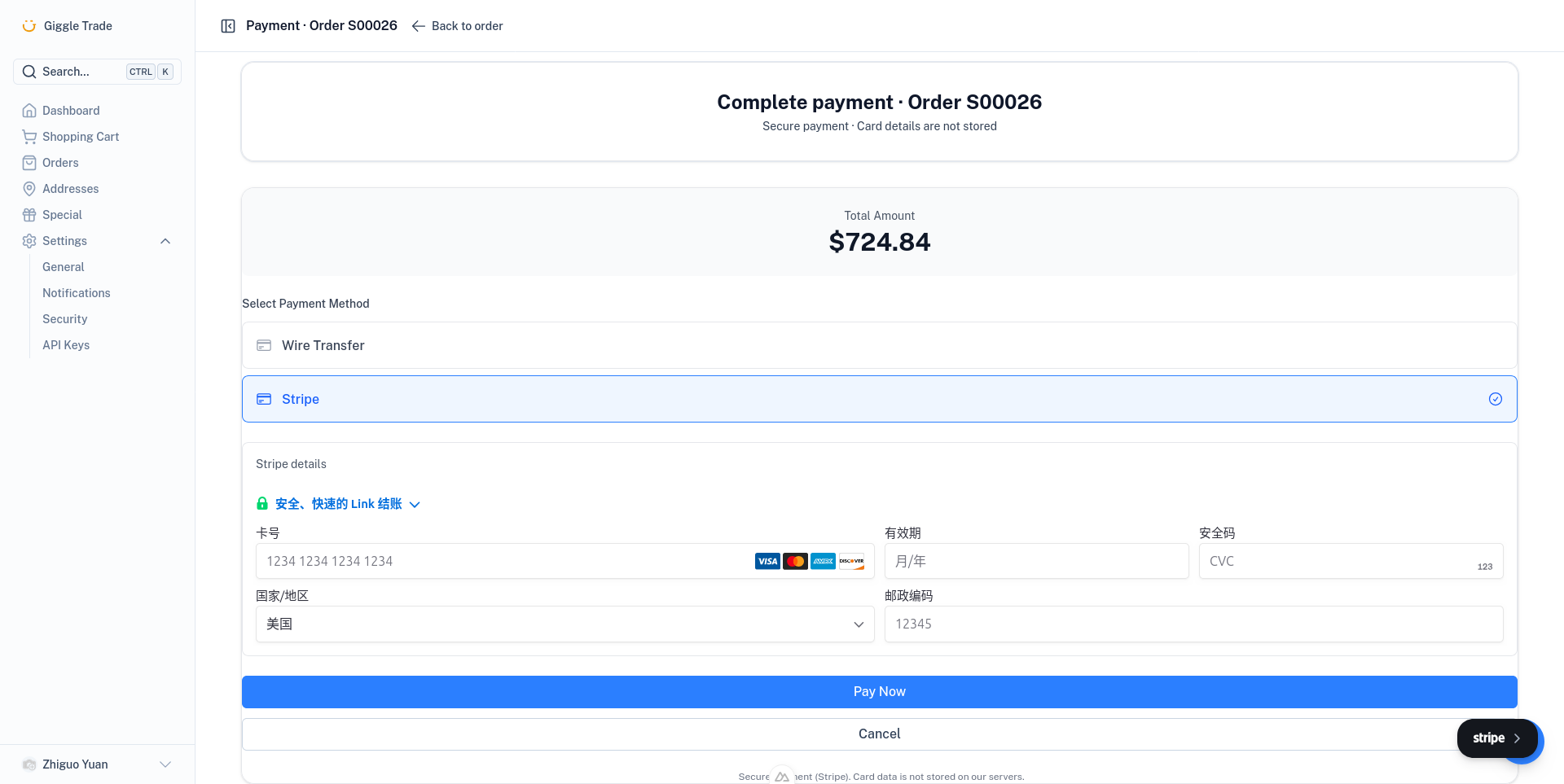
6. Complete payment
Stock orders require full payment (no deposit/balance option).
- URL:
/my/orders/[id]/payment?type=full - Review the total amount.
- Enter your card details (powered by Stripe — secure, PCI-compliant).
- Click Pay to complete the transaction.
- On success, you are redirected to the Payment Successful page.
7. Order complete
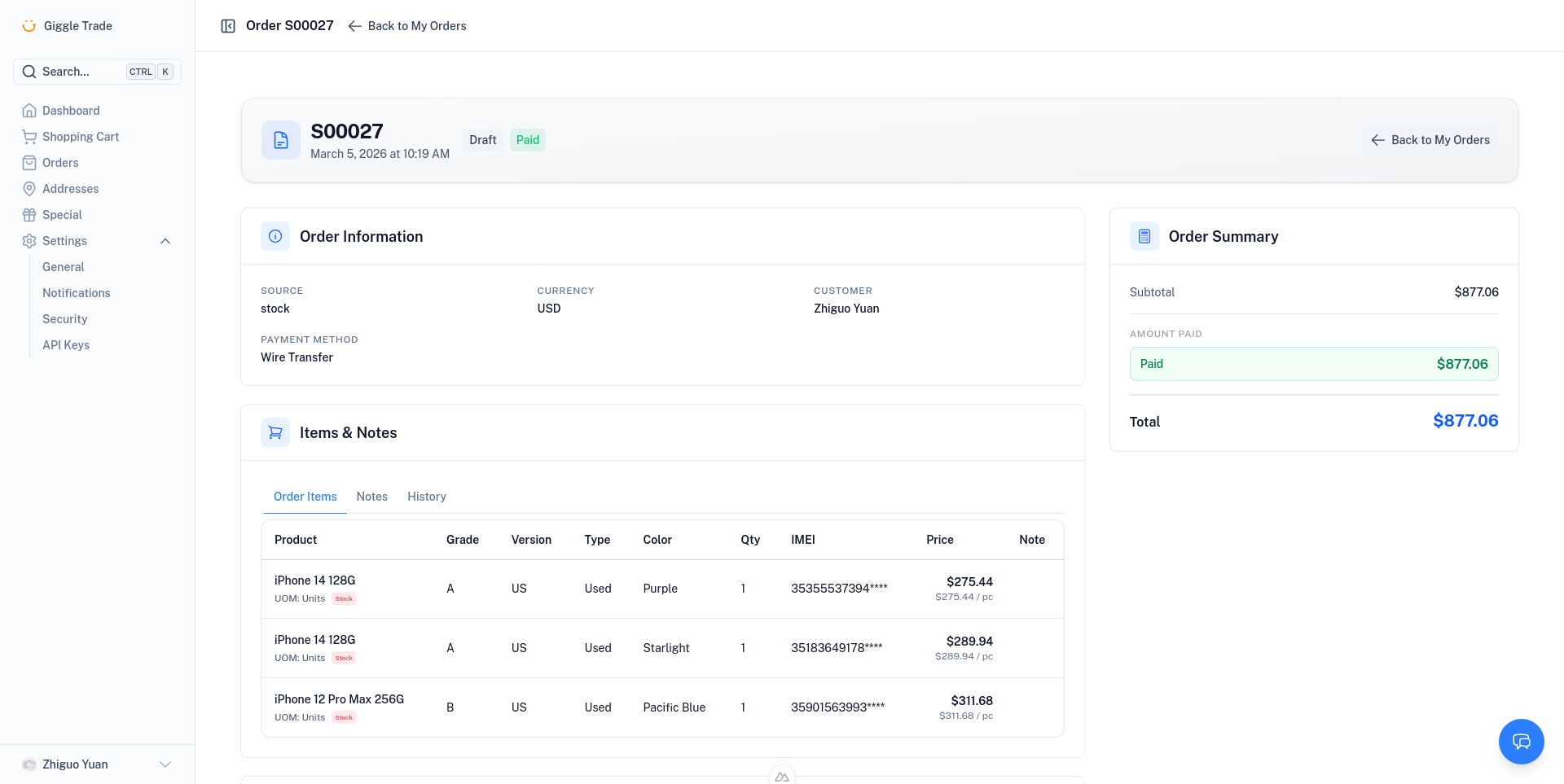
After payment, your order moves to fulfillment:
- View the order in My Orders at any time.
- Track status updates: confirmed → processing → shipped → delivered → complete.
- View order items, total amount paid, and shipping details.
Catalog vs. Stock — Key Differences
| Catalog | Stock | |
|---|---|---|
| What you buy | Products by model (bulk quantities) | Individual in-stock devices (with IMEI) |
| Pricing | Weekly reference price (final price confirmed) | Fixed per-device price |
| Payment | Deposit + balance, or full | Full payment only |
| Inventory | No reservation — price may change | Reserved for 24 hours after checkout |
| Quantity | Flexible (set your quantity) | 1 per device |
INFO
You cannot mix catalog and stock items in a single order. The checkout processes them separately based on the cart contents.
Summary
| Step | Action | Page |
|---|---|---|
| 1 | Browse stock | /market/stock |
| 2 | View device & add to cart | /market/stock/[slug] |
| 3 | Review cart | /my/cart |
| 4 | Checkout & place order | /my/checkout |
| 5 | Order submitted (pending review) | /my/orders/[id]/order-submitted |
| 6 | Pay full amount | /my/orders/[id]/payment |
| 7 | Track order | /my/orders/[id] |
TIP
Stock flow is a straight path: browse → cart → checkout → order → pay full → done. No deposit or balance steps.